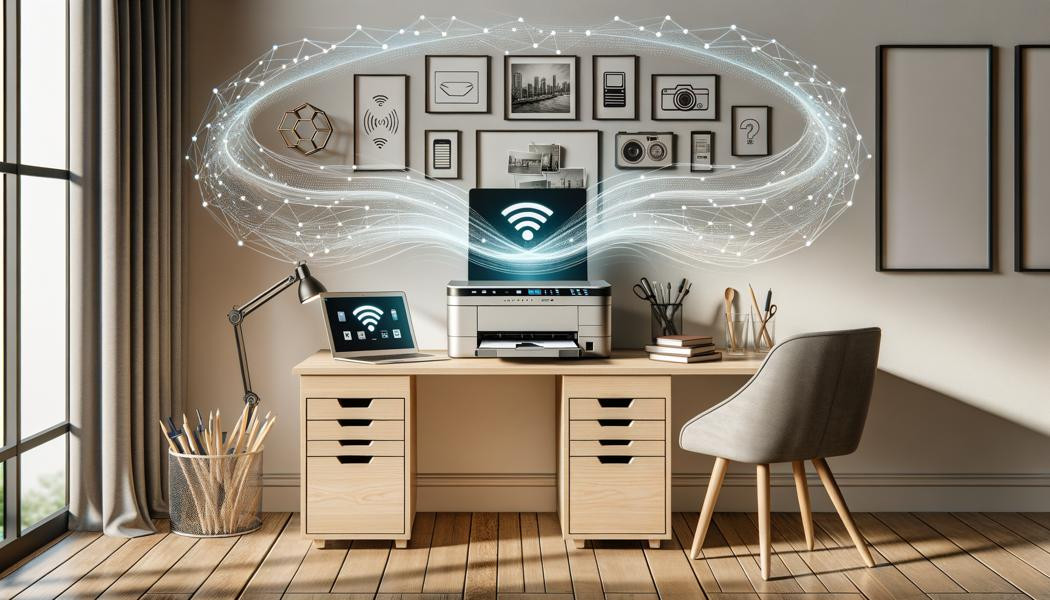
In a world where technology continues to evolve, connected printers are becoming an essential asset for individuals and businesses. The installation of these devices can seem complex, but this guide offers a simple, step-by-step approach to help you make the most of your connected printer in 2025. We explore why connected printers have become indispensable, the benefits they offer, and we detail the installation process, from preparing your space to troubleshooting common issues. Get practical tips to ensure a seamless, stress-free printing experience.
Need help installing a connected printer? Quickly find a qualified provider on Helplease and benefit from a tailor-made service to meet all your needs. Discover professionals near you!Contents
- Why choose a connected printer in 2025?
- What are the advantages of connected printers?
- How to prepare your space for the installation of the connected printer?
- What are the preliminary steps to install a connected printer?
- How to connect to a Wi-Fi network for the printer?
- What software and drivers are necessary for a successful installation?
- How to configure the settings of the connected printer?
- What are the common problems during the installation of a connected printer?
- How to test your printer's proper operation after installation?
- What tips for optimal maintenance of your connected printer?
- How to solve connection problems with your printer?
- What innovations to expect from connected printers in the coming years?
Why choose a connected printer in 2025?
With the increasing digitization of our daily activities, opting for a connected printer in 2025 is a wise choice. As remote work gains ground, these devices offer unprecedented flexibility. The ability to print without being physically present at the computer, directly from a smartphone or tablet, provides a significant time saving and efficiency. Connected printers also allow resource sharing among multiple users, which is especially beneficial in a collaborative work environment.
Moreover, the advanced features of these printers, such as remote scanning and copying, are ideal for those looking to simplify their workflow. Additionally, connected printers are often more efficient, with improved printing speeds and superior quality, meeting today's needs.
Compatibility with numerous document management applications allows for easy integration into existing business systems. Users can thus efficiently manage their projects while maintaining smooth access to their digital documents.
In conclusion, choosing a connected printer in 2025 is not just a trend but a real asset to enhance productivity and collaboration in various work configurations.
Professionals, looking for more clients? Sign up on Helplease today to offer your services and grow your business. Access a large customer base in just a few clicks!What are the advantages of connected printers?
The advantages of connected printers are numerous and varied. First, accessibility is one of the main strengths. Whether you are at the office or at home, you can print documents from any device connected to the same network. This convenience, which eliminates the need for a USB connection, greatly facilitates daily use.
Next, connected printers are generally equipped with smart functions, such as automatic detection of paper and ink cartridges. This not only allows you to receive alerts when the ink is low, but also to optimize your ink and paper consumption, contributing to more environmentally friendly printing.
Another advantage lies in the improved user interface. Many connected printers feature intuitive touchscreens and mobile apps to ease configuration and task management. Thanks to this, even less experienced users can efficiently navigate the printer's various features.
Finally, integration with cloud services allows you to back up and access your files on multiple devices, making document management smoother. Even if the files are not on your device, you can instantly access them from platforms such as Google Drive or Dropbox.
How to prepare your space for the installation of the connected printer?
Before proceeding with the installation of your connected printer, it is essential to prepare the space where it will be located. Ensure that the area is clean, well-lit, and sufficiently ventilated to avoid any overheating of the device. Also verify that the surface is flat and sturdy enough to support the weight of the printer.
It is also important to consider proximity to an electrical outlet. Ensuring that the printer is easily accessible for plugging in the power cord will facilitate installation and daily use. Avoid cramming the device between other equipment or furniture, as this may interfere with its ventilation and operation.
Also prepare your Wi-Fi network. Make sure it is active and that you have the login details (network name and password) at hand. This will simplify the process of connecting the printer to your home or business network.
Finally, when choosing a location for your printer, consider its intended use. If it will be frequently used by several people, a central location is preferable to avoid users having to look for the printer every time they need it.
What are the preliminary steps to install a connected printer?
To successfully install your connected printer, start by carefully unpacking the printer and all its accessories. Be sure to keep all packaging and user guides for future reference.
Once the printer is unpacked, follow the manufacturer's instructions to insert the ink cartridges. This step is crucial as improper installation can affect print quality. Also load paper into the tray, following the recommended format and type indications.
Next, plug the printer into a power outlet and turn it on. You should see a home screen appear. At this stage, you can select the desired language and configure initial preferences, such as date and time.
Finally, make sure to check for firmware updates for your device. Manufacturers often release updates to enhance the printer’s performance and security. This can be done via the dedicated app or the manufacturer's website.
How to connect to a Wi-Fi network for the printer?
Connecting your printer to a Wi-Fi network is a key step to take advantage of all the features of a connected printer. To start, go to the printer's settings menu from the home screen. Look for the “Network” or “Wi-Fi” option, and select “Set up wireless connection.”
Once this option is selected, the printer will search for available Wi-Fi networks nearby. When the list appears, choose your network from the list. If needed, enter your Wi-Fi network password to establish the connection. Be sure to respect upper and lowercase, as passwords are case sensitive.
After entering the password successfully, the printer will attempt to connect to the network. This may take a few moments. Once the connection is established, check that the printer’s Wi-Fi indicator is on, indicating the device is properly connected.
To ensure the printer is well connected, you can print a test page directly from the printer. This will confirm that the connection is functioning correctly and that the printer is ready to receive print jobs.
What software and drivers are necessary for a successful installation?
To ensure optimal operation of your connected printer, it is important to install the necessary drivers and software. Begin by visiting your printer manufacturer’s official website. There you will find a dedicated support section with driver downloads.
Before starting the download, be sure to identify the exact model of your printer and your operating system version (Windows, macOS, Linux, etc.). The software must be compatible with your device to avoid installation problems.
Once the driver is downloaded, follow the provided installation instructions. This will usually include connecting the printer to your computer via USB (if necessary) during the installation process. You will then be guided to complete the setup.
Finally, after installing the software, do a test print to confirm that the printer works correctly. If errors occur, refer to the user manual or the manufacturer's website for specific solutions.
How to configure the settings of the connected printer?
Once the printer is connected to your Wi-Fi network and the drivers are installed, it's time to configure your printer settings to optimize its use. Access the settings menu from the printer's home screen. Here, you can personalize several options to suit your preferences.
Start by setting up the print parameters. This includes print quality, duplex mode if your printer supports this function, and default paper size. It is advisable to select a print mode that matches your daily needs to save ink and paper.
You can also determine scanning preferences if your printer offers this option. This may include settings for scan resolution, file format (PDF, JPEG, etc.), and the location where scanned files will be saved (photo library or cloud).
Finally, make sure to set up maintenance alerts. This will let you receive notifications about ink levels, paper jams, or other technical issues, ensuring your printer remains in good working condition.
What are the common problems during the installation of a connected printer?
Despite technological advances, installing a connected printer can still be a source of frustration. A common problem is difficulty establishing a Wi-Fi connection. If your printer can’t find the network, check the signal range or consider restarting your router and printer.
Another frequent issue is incompatible drivers. If the printer is not recognized by your computer, make sure you have installed the correct driver. Recent operating system updates may also cause conflicts, making driver updates essential.
Users sometimes report paper jam errors, often due to incorrect paper loading. Make sure the paper is properly aligned in the tray and that there are no pieces jammed inside the printer.
Lastly, the printer may not respond to a print job being sent. This can be caused by incorrect print queue settings. Check that your default printer is properly selected in your computer’s control panel.
How to test your printer's proper operation after installation?
Testing your printer after installation is crucial to ensure that everything has been configured correctly. The first step is to print a test page, which lets you check print quality and proper color function. This feature is generally accessible directly from the printer menu.
Next, try printing from different devices, such as your smartphone or a tablet. This will allow you to verify that the wireless connection works adequately and that the printer can smoothly receive print jobs.
It is also recommended to perform a scan test if your printer has this function. This will help ensure that scanning capabilities are working properly and familiarize you with the document management software.
Finally, check the printer network settings via the dedicated app if applicable. Ensure that the printer is still connected to the correct Wi-Fi network and that its IP address is properly configured.
What tips for optimal maintenance of your connected printer?
To ensure the longevity of your connected printer, it is important to follow some maintenance tips. Start by regularly cleaning the exterior and interior of the device with a soft cloth to prevent dust buildup. Avoid using harsh chemicals that could damage surfaces.
It is also essential to regularly check ink levels and replace cartridges when necessary. Use original or manufacturer-recommended compatible cartridges to avoid compatibility problems.
To preserve print quality, carry out regular printhead cleaning and alignment using your printer’s software. This eliminates blockages and ensures sharp prints.
Finally, keep an eye on software updates offered by the manufacturer. Installing the latest driver and firmware updates can improve performance and introduce new features, ensuring your connected printer operates optimally.
How to solve connection problems with your printer?
If you encounter connection issues with your printer, start by checking that the printer is turned on and connected to the correct Wi-Fi network. Sometimes, simply restarting the printer and the router can solve these connection issues.
If the connection is still not established, make sure the drivers are up to date. Visit the manufacturer’s website to download the latest updates. You can also uninstall and reinstall the printer software to restore the connection.
Also check your firewall or antivirus settings, which may be blocking the printer connection. Ensure that your printer is added to the list of trusted devices.
For persistent issues, consult the troubleshooting guide provided with the printer or visit the manufacturer’s website to check for help articles and troubleshooting guides specific to your model.
What innovations to expect from connected printers in the coming years?
As technology continues to evolve, many innovations are expected for connected printers. Among the most anticipated, artificial intelligence will play a key role in managing print jobs, making the process smarter and more predictive. For example, printers could anticipate ink or paper needs by analyzing your printing habits.
Connectivity will also be improved, with new standards enabling faster and more secure connections. Expect to see more integration with voice assistants, making contactless printing even easier.
Moreover, sustainability will be at the heart of manufacturers’ concerns, with printers developed to minimize their carbon footprint and optimize resource usage. This includes printing technologies with low energy consumption and recyclable ink cartridges.
Finally, improvements in augmented reality could enrich the user experience, allowing users to interact with their print jobs in a more immersive and intuitive way.
Conclusion
Installing and using a connected printer in 2025 is now an accessible task thanks to the many clarifications and steps we have covered. By choosing the right printer, carefully preparing your work environment, and following the installation advice, you can ensure smooth and efficient operation. The challenges faced during installation can be overcome with good preparation, and with regular maintenance, your printer will remain efficient for many years. Anticipating future innovations will help you make the most of your device, making printing a valuable asset for your personal and professional needs.
Whether you need quick help or want to offer your services, Helplease is your solution! Download the app to access qualified experts or find clients in one click, and streamline your daily life! Available on iOS and Android!